 CI Echo
Live translation for every meeting
Teacher Guide · web app + Chrome extension
CI Echo turns any conversation into a live bilingual transcript that everyone can read in their own language — on your screen, on their phones, or as subtitles over your Google Slides — and saves it as a searchable record. Audio is never recorded.
Get set up (once)
Two things, two minutes. Do both now so you're ready the first time you need it.
Sign in to CI Echo
Go to ci-echo.org and click Continue with Google with your @chadwickschool.org account. Bookmark it — or open it from the CI ECHO button at the top of the CI Hub widget.
Install the Chrome extension
Open CI Echo Subtitles on the Chrome Web Store → Add to Chrome → then click the puzzle-piece icon and pin it. It puts live translated subtitles over your Google Slides. (Optional, but the best way to present.)
Anyone can read along by scanning a QR code or opening a link — on any phone, in any of 20 languages, no account needed.
Start a session
From the dashboard, click Start new session. Fill in the short form and press Start session.
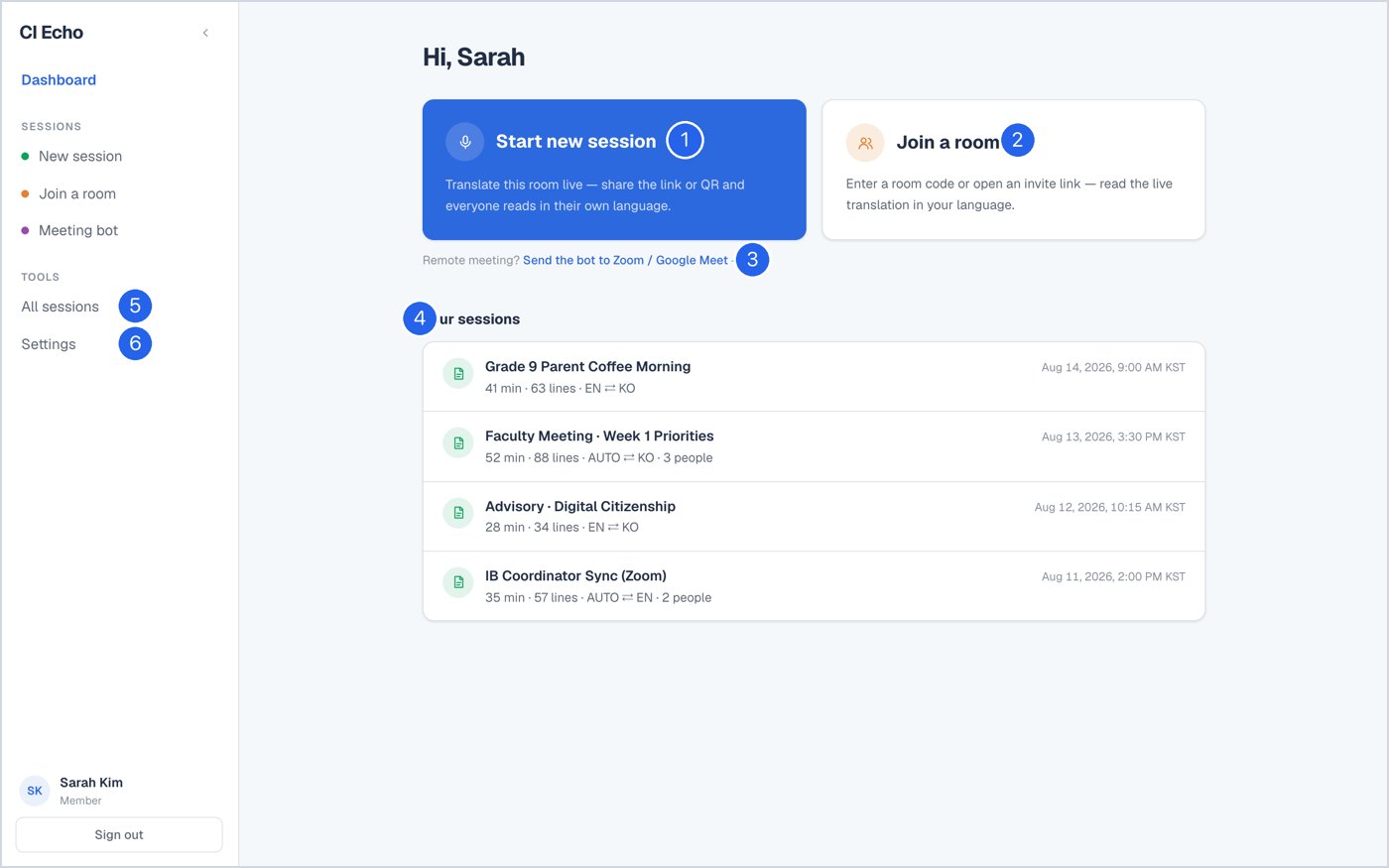
- Start new sessionTranslate the room you're in — your Mac's microphone is the source.
- Join a roomYou're the audience: read someone else's live session in your language.
- Send the bot to Zoom / Google MeetFor remote meetings — see Zoom / Meet bot.
- Your sessionsEvery past session, newest first — click one to read or download it.
- All sessionsThe full library.
- SettingsYour default languages.
The setup form
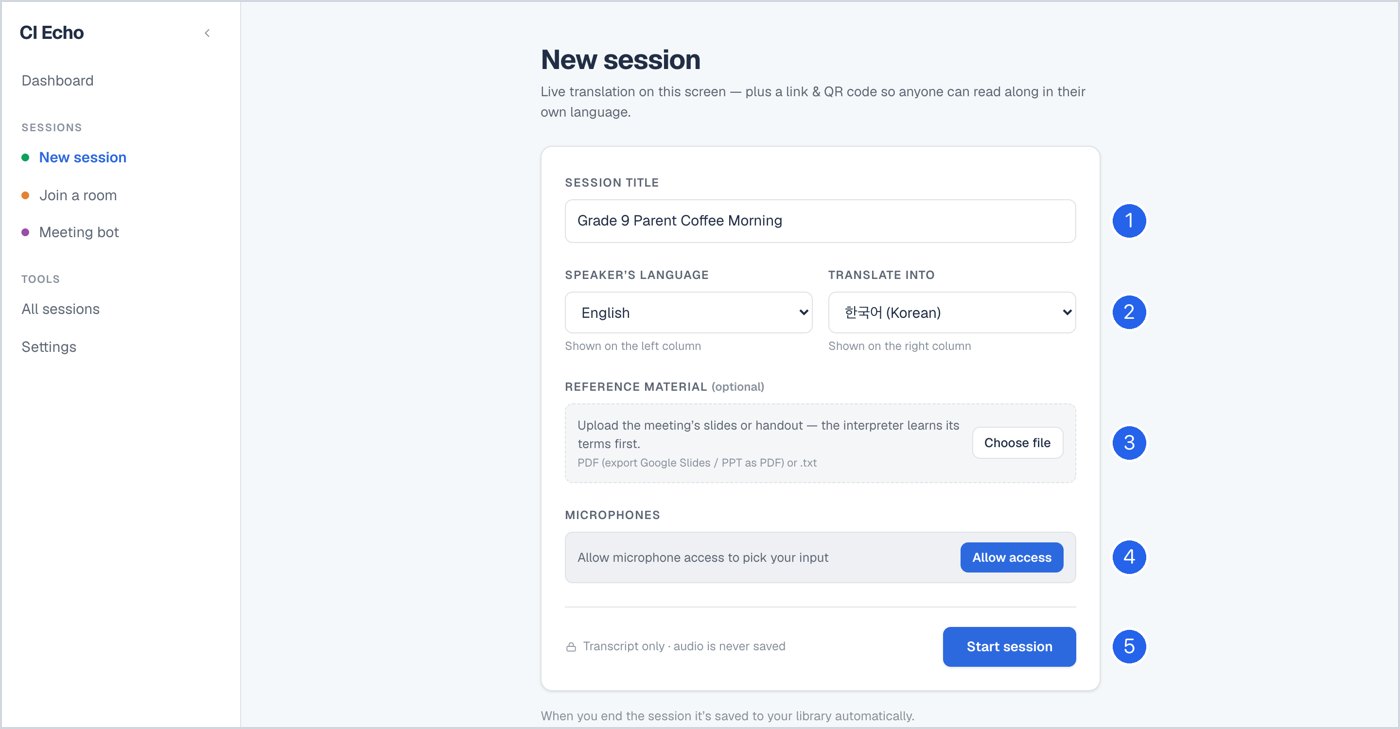
- Session titleOptional — leave it and CI Echo names the session for you from what was said.
- Speaker's language → Translate intoLeave the speaker on Auto-detect if several languages will be spoken. Pick what the room should read (e.g. Korean).
- Reference material (optional)Upload today's slides or handout as a PDF. CI Echo learns the names and terms first — noticeably better accuracy on proper nouns.
- MicrophonesClick Allow access. You can pick two mics (e.g. a lapel mic + a table mic) and they're mixed together.
- Start sessionTranscript only — audio is never saved. When you end, it's saved to your library automatically.
Export your Google Slides as PDF (File → Download → PDF) and drop it into Reference material. Names of people, places and programs come out right the first time.
During the session
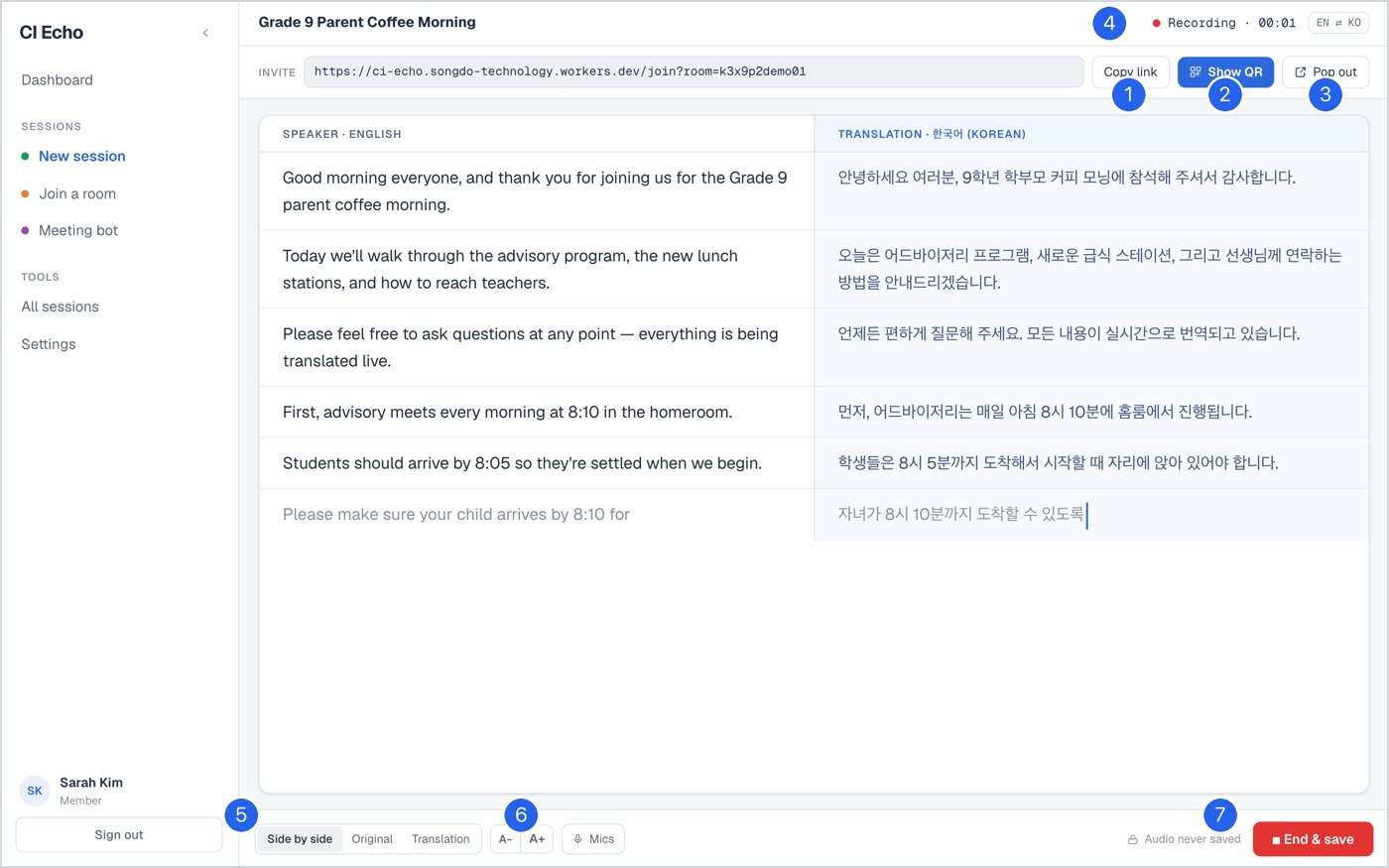
Just talk. The original appears on the left, the translation on the right, sentence by sentence. A new paragraph starts whenever you pause.
- Copy linkThe invite link for this session — paste it in a chat or an email.
- Show QRA big QR code to put on the projector. People scan → pick their language → read along.
- Pop outOpens the translation in its own window — put it beside your slides on a second screen.
- Recording · timer · languagesRed dot = live. The count of people reading along appears here too.
- Side by side · Original · TranslationChoose the layout for the room.
- A− / A+ · MicsText size for the projector · swap microphones mid-session without stopping.
- End & saveThe only way to stop. Saves the transcript and opens it in your library.
There is no pause button by design — end the session and start a new one for the next part of the meeting. Every finished paragraph is quietly re-translated a second time for accuracy, so wording may improve a moment after it appears.
Share with the room — three ways
Pick whichever fits the moment. You can use all three at once.
1 · QR code / link
Best for: parents, mixed-language audiences, big rooms. Click Show QR and project it. Each person reads on their own phone in their own language and can change it any time. Late arrivals get everything said so far.
2 · Pop out
Best for: a classroom with a second display or a projector next to your laptop. One large, clean caption window that auto-scrolls. Toggle Original on/off; A−/A+ for size.
3 · Subtitles on your slides
Best for: presenting from Google Slides. The Chrome extension draws movie-style subtitles over the deck — even in full-screen Present mode. Nothing to switch between. See below.
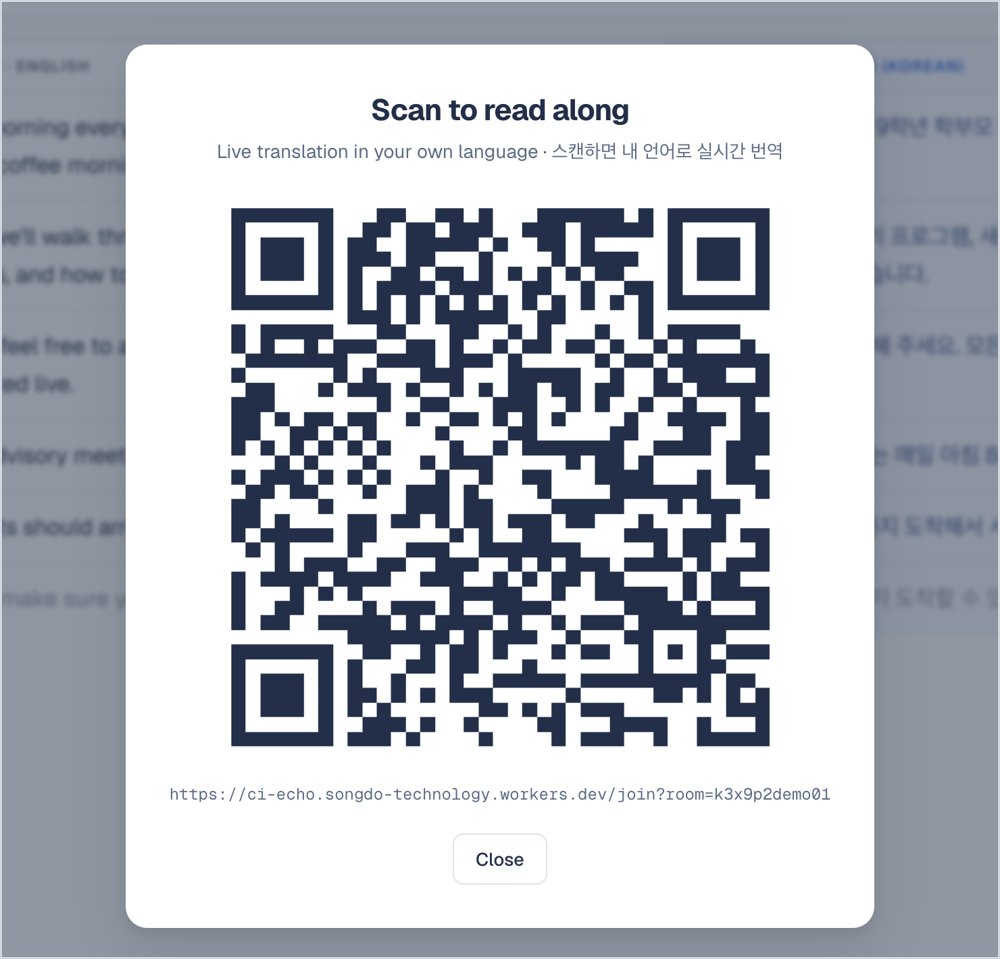
"Scan to read along"
This is what Show QR puts on your screen. Leave it up for the first minute of a meeting; the caption underneath is bilingual so nobody needs instructions.
The link never changes during a session, so you can also paste it into a Google Classroom post or a Meet chat.
Chrome extension — CI Echo Subtitles
Live translated subtitles over your Google Slides, including full-screen Present mode. Clicks and arrow keys pass straight through, so presenting feels exactly the same.
- Install onceChrome Web Store → CI Echo Subtitles → Add to Chrome. Then click the puzzle-piece icon in Chrome and pin CI Echo Subtitles so it's always visible.
- Start a session in CI EchoNew session → Start session (as above). Click Copy link.
- Open your Google Slides deckThe extension only activates on docs.google.com/presentation.
- Click the extension icon and paste the linkIt reads the room code and auto-fills the languages from your session. Flip the toggle on.
- PresentSubtitles appear at the bottom (or top) of the slides, one sentence at a time. Full-screen works.
- To stopFlip the toggle off. Done.
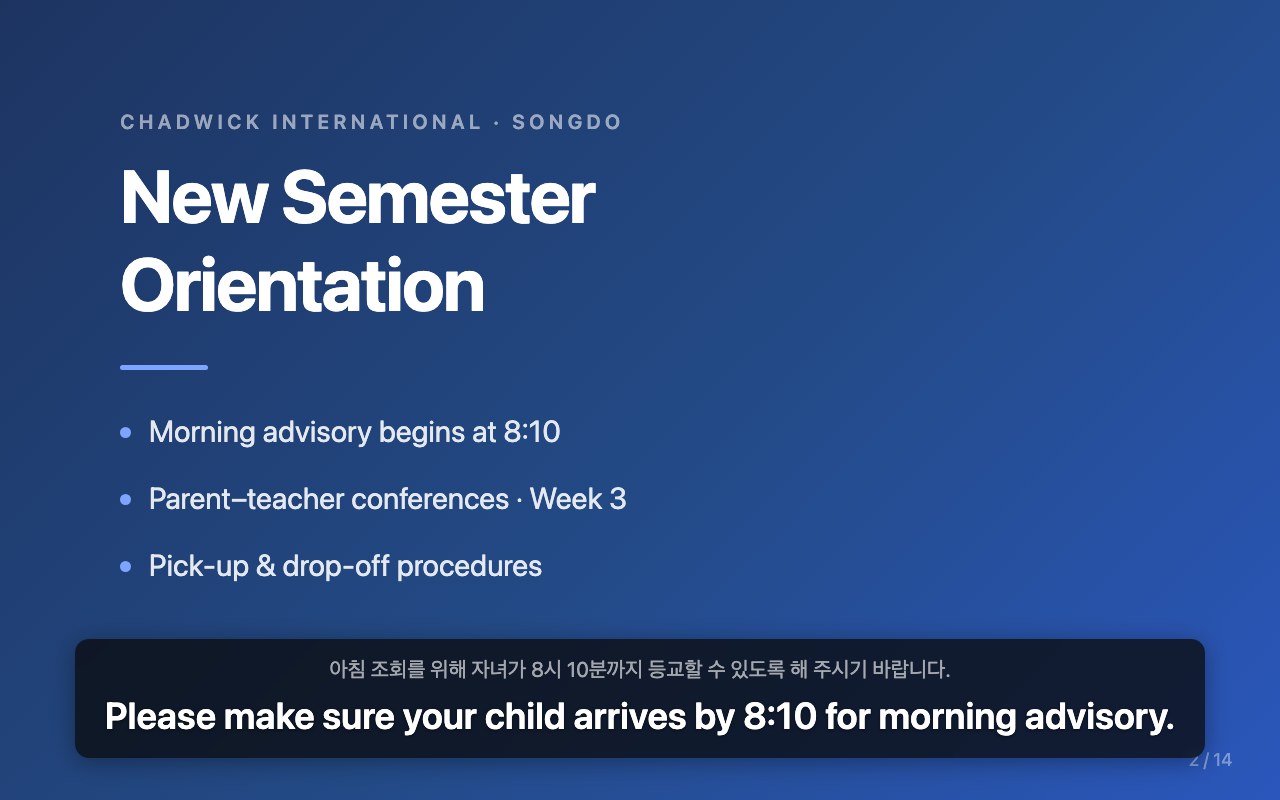
The extension popup
- Show subtitlesThe on/off switch.
- Session link or room codePaste the invite link (or the pop-out link, or just the code). Green "Room: …" means it's connected.
- Show inThe language the subtitles are written in.
- Speaker speaksAuto-fills from the session; change only if needed.
- Subtitle size70%–200%. 120% is good for a classroom projector.
- Show original line · Bottom / TopAdd the small original-language line above the translation; move the bar to the top if it covers your slide footer.
The extension asks for no microphone and no tab access — it only receives text from your CI Echo session. All listening happens in the CI Echo tab.
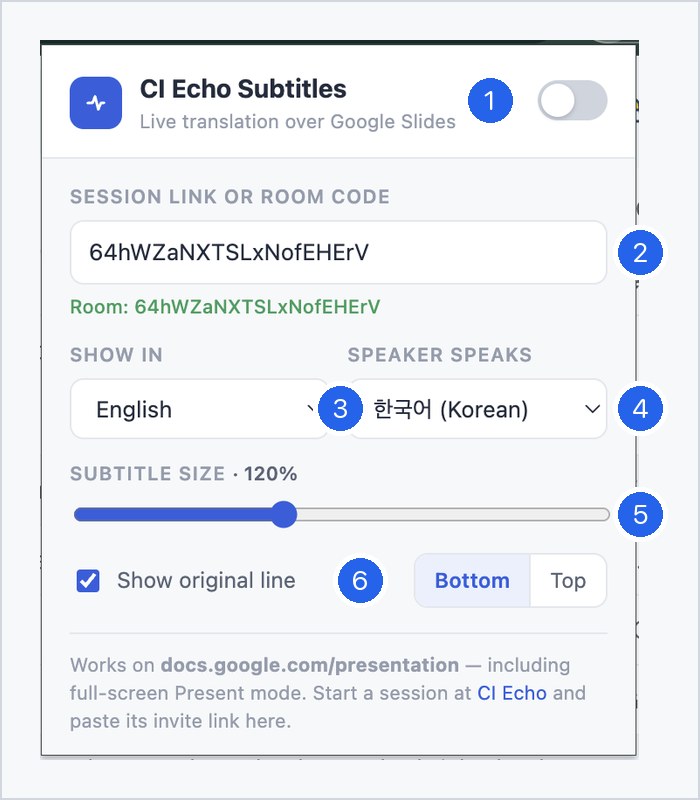
Keep the CI Echo session tab open (it's doing the listening) and present your slides in another window or on the projector. If you close the CI Echo tab, the subtitles stop.
What the audience sees
Scanning the QR or opening the link works on any phone or laptop — no app, no account.
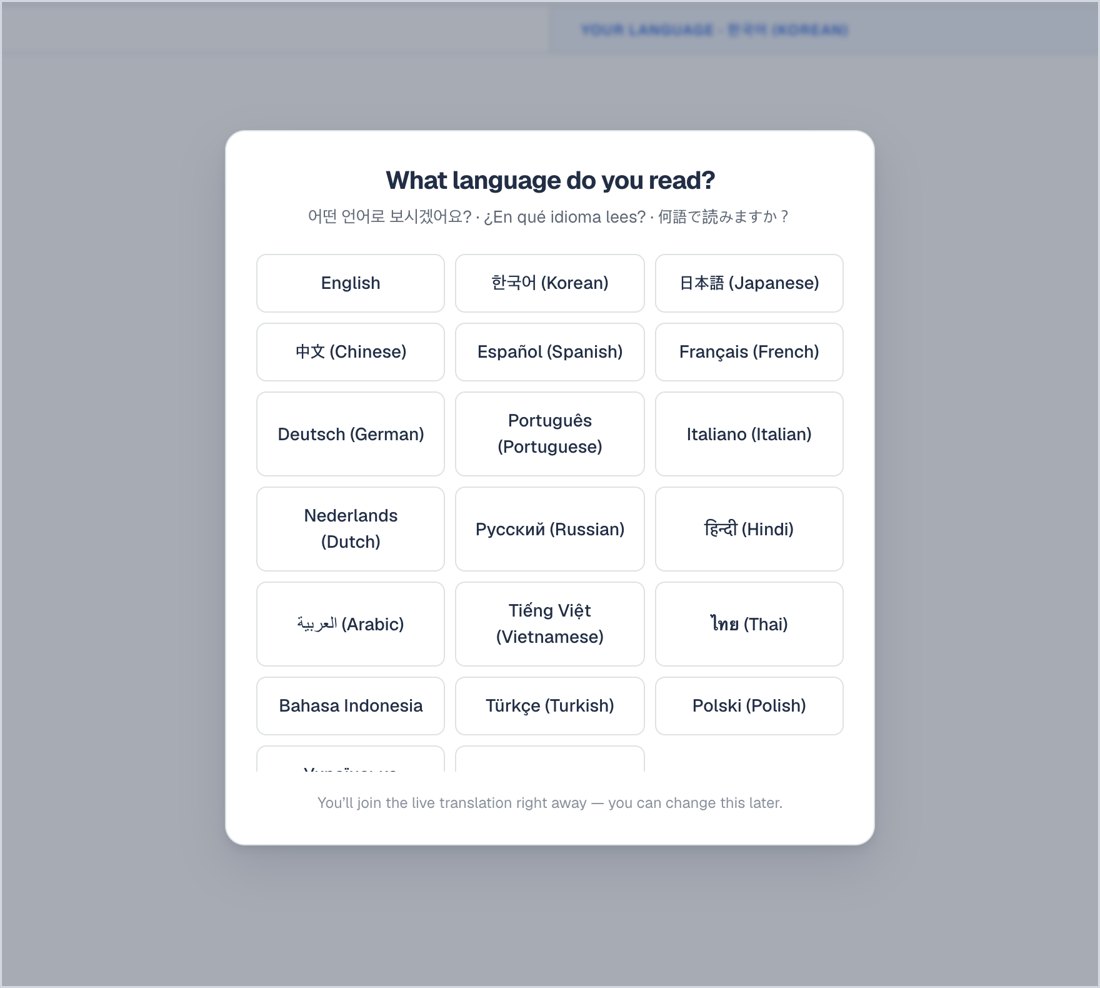
- "What language do you read?"The first thing they see. One tap on any of the 20 languages.
- They're inThe whole conversation so far loads in their language, then live text keeps arriving.
- They can change language any timeFrom the dropdown at the top. A− / A+ for text size.

Signed-in Chadwick colleagues who join also get the transcript saved into their own library automatically.
Zoom / Google Meet — send the bot
For remote meetings, CI Echo joins the call as a participant named "CI Echo", listens, and translates live — no one needs to share their screen.
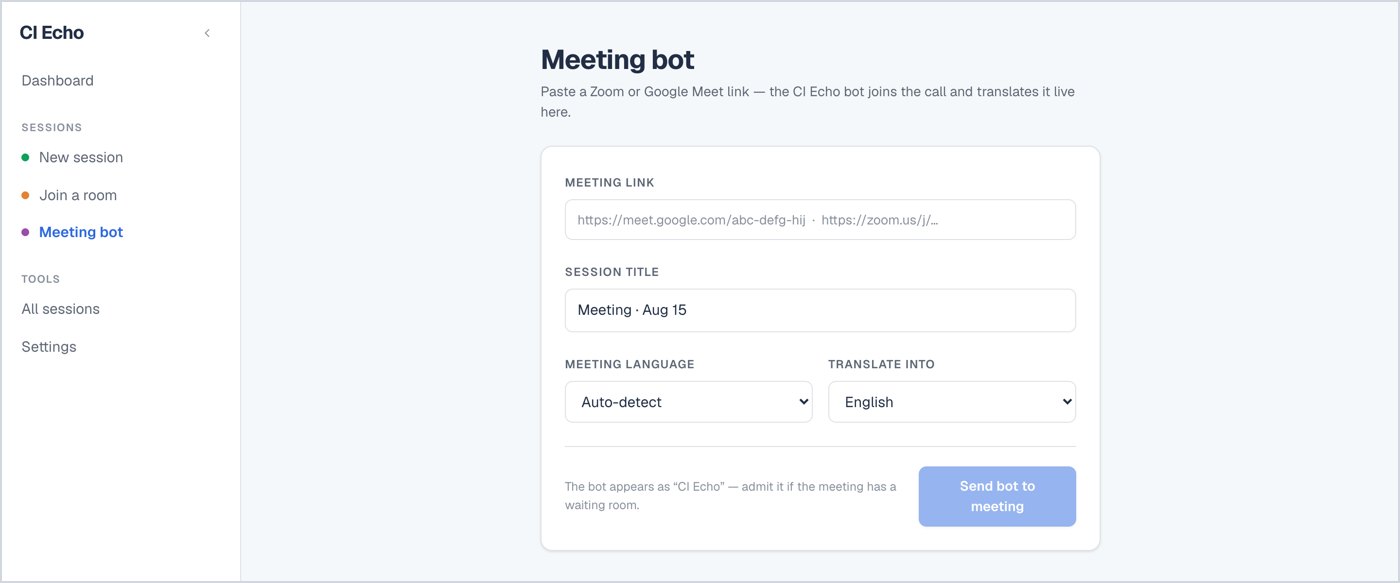
- Meeting linkPaste the full Zoom or Google Meet link.
- Session titleOptional.
- Meeting language → Translate intoSame as an in-room session.
- Send bot to meetingIf the meeting has a waiting room, admit "CI Echo" when it knocks. Status shows on this page.
- Inside the callParticipants can pin the "CI Echo" tile — its video shows the live translation full-size. When done: Remove bot & save.
The bot is billed per meeting-hour, so the Tech Office may limit it to certain staff. If you see "Meeting bots are limited to admins right now", ask us.
Saved transcripts
Every session is saved the moment you end it. Nothing to export or remember.
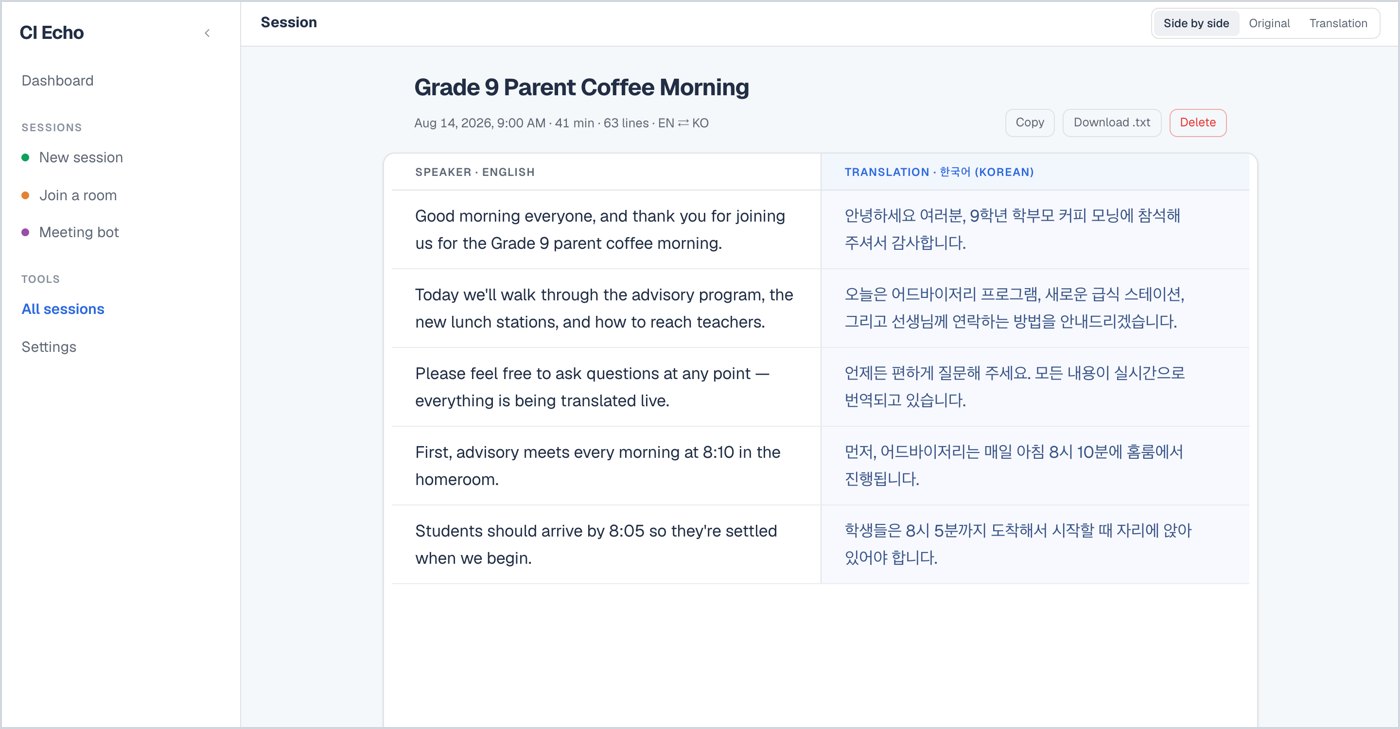
- Open any sessionFrom the dashboard or All sessions. Side-by-side, original-only or translation-only.
- RenameClick the title to rename it.
- Copy · Download .txt · DeleteCopy the whole transcript to paste into an email or doc; download as text; delete for good (owner only).
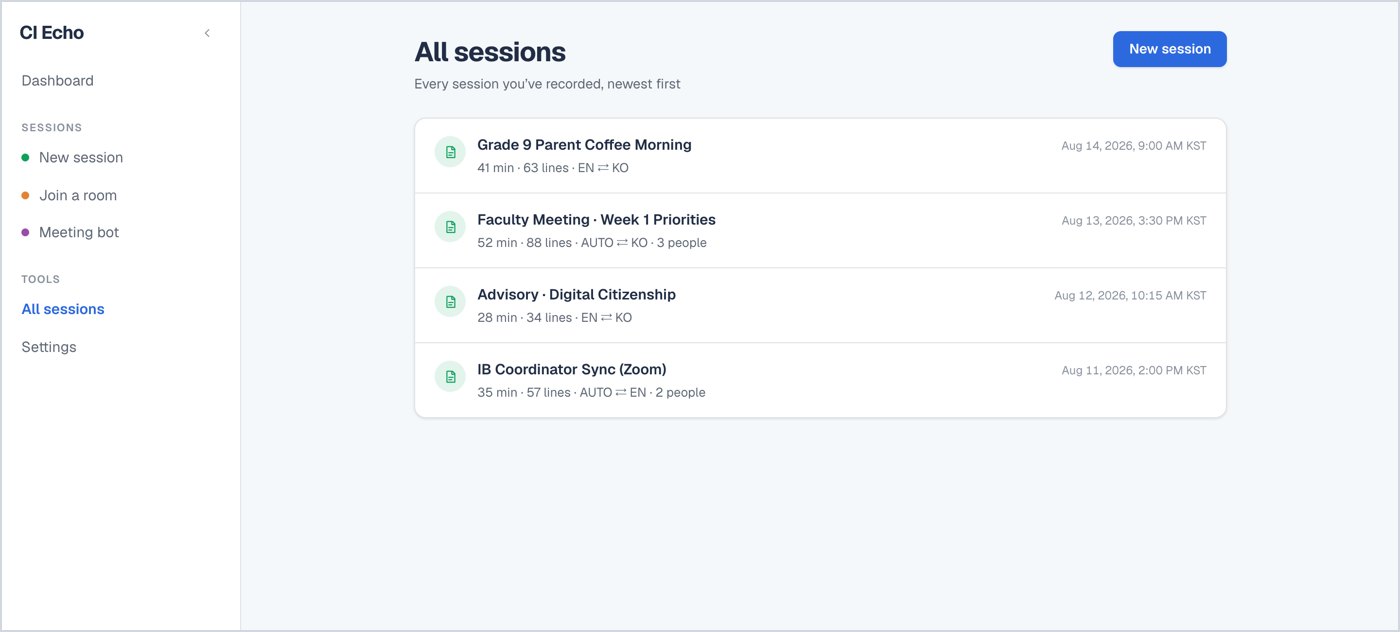
Every row shows the length, number of lines, the language pair and how many people read along.
Settings
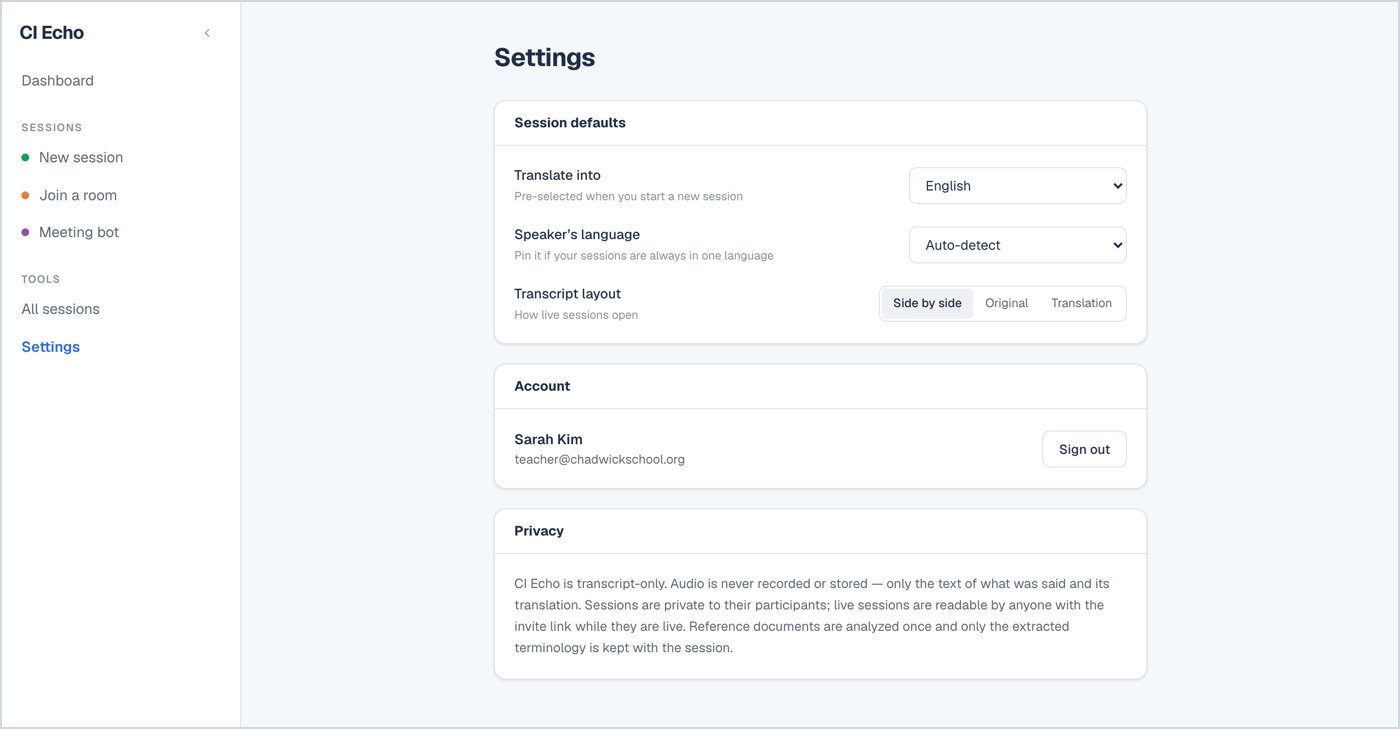
- Translate intoPre-selected every time you start a session. Set it once to the language your room usually reads.
- Speaker's languagePin it if your sessions are always in one language; otherwise leave Auto-detect.
- Transcript layoutHow live sessions open by default.
CI Echo is transcript-only. Audio is never recorded or stored — only the text of what was said and its translation. Sessions are private to their participants; live sessions are readable by anyone with the invite link while they are live. Reference documents are analysed once and only the extracted terminology is kept.
Quick answers
Which languages?
20: English, 한국어, 日本語, 中文, Español, Français, Deutsch, Português, Italiano, Nederlands, Русский, हिन्दी, العربية, Tiếng Việt, ไทย, Bahasa Indonesia, Türkçe, Polski, Українська, Filipino. Translations use a polite/formal register.
Is it recording us?
No. Audio is processed live and never stored. Only text is saved.
The extension shows nothing on my slides
Check three things: the toggle is on · a session is running in another CI Echo tab · you're on docs.google.com/presentation. Reload the Slides tab if you just installed it.
The mic isn't picking up
Click the 🎤/🔒 icon in Chrome's address bar → allow the microphone → reload. In Mics, pick the lapel/table mic instead of the built-in one.
Can parents use it without an account?
Yes — the QR/link view needs no sign-in. Only teachers starting sessions sign in.
Something else
Ask the CI Hub AI Support tab, or email songdo-technology@chadwickschool.org.