CI Hub
Teacher Guide
The menu-bar widget on every school MacBook: air quality, heat alerts, lunch, calendar, AI support and a direct line to the Tech Office — one click from the top of your screen.
Install CI Hub on Windows
School MacBooks already have CI Hub. On a Windows PC you install it once — from then on it updates itself and starts with the computer. No administrator password needed.
⬇ Download CI Hub for WindowsCI-Hub-Setup.exe — always the current version. No sign-in needed.
Run the installer
Open the downloaded CI-Hub-Setup.exe. It installs just for you — no admin rights, no restart.
“Windows protected your PC”
A blue box appears and looks like a refusal. Click More info, then Run anyway. That is normal for in-house school software.
Nothing opens — that's fine
CI Hub runs quietly in the background. Find it at the bottom-right of the taskbar: click the small up arrow (Show hidden icons) and click the CI Hub icon. Drag the icon out of that tray to keep it always visible.
From then on
It starts with Windows and updates itself silently. You never install it again.
Where is it? How do I open it?
CI Hub lives in your menu bar. It starts by itself when you log in.
Open
Click the CI Hub icon at the top-right of your screen (in the menu bar, next to Wi-Fi and the clock). The widget drops down from the top of the screen.
Close
Click anywhere outside the widget, or the red dot at its top-left. It hides — it does not quit.
Resize & move
Drag any corner to resize. Green dot = fill the screen, yellow dot = back to the default size.
Quit?
You never need to. If you do quit it, it comes back on its own within about 30 seconds so the alerts and lunch always work.
Home — everything at a glance
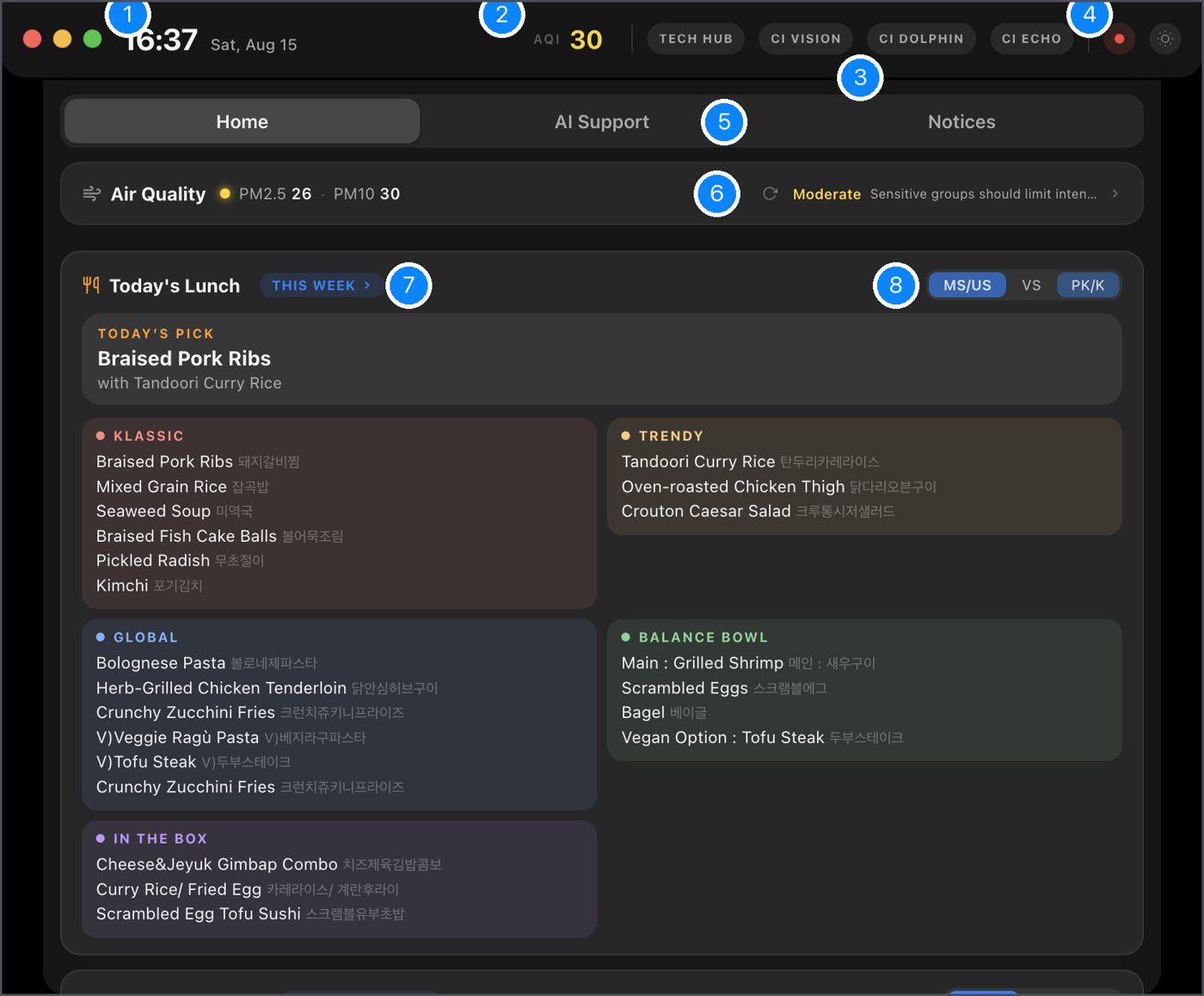
- Window controlsRed hides the widget · Yellow restores the default size · Green fills the screen.
- Air quality nowAQI for Songdo. Colour = level. Tap the Air Quality row below for details.
- Quick linksTECH HUB website · CI VISION · CI DOLPHIN app · CI ECHO live translation.
- Light / darkToggle the widget theme.
- TabsHome · AI Support · Notices.
- Air Quality rowPM2.5 / PM10 and today's activity guidance. Click › to open the full panel.
- This WeekOpens the whole week's lunch, day by day.
- MS/US · VS · PK/KPick your division — the lunch card remembers your choice.
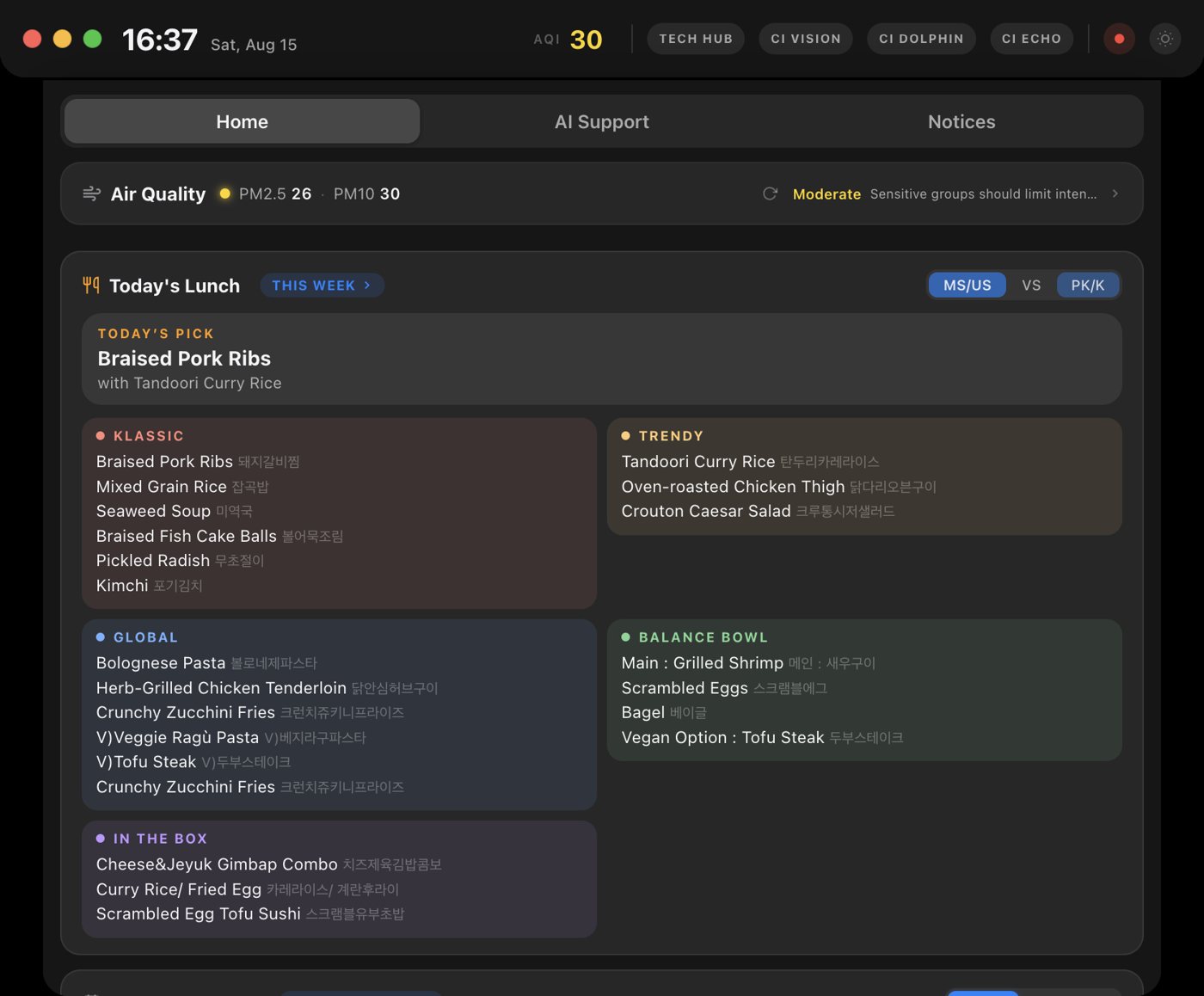
Below the lunch card: School Calendar (today / tomorrow, from Veracross) and Request to Tech Office.
Today's Lunch
Menus come straight from the kitchen every week — no one has to type them in.
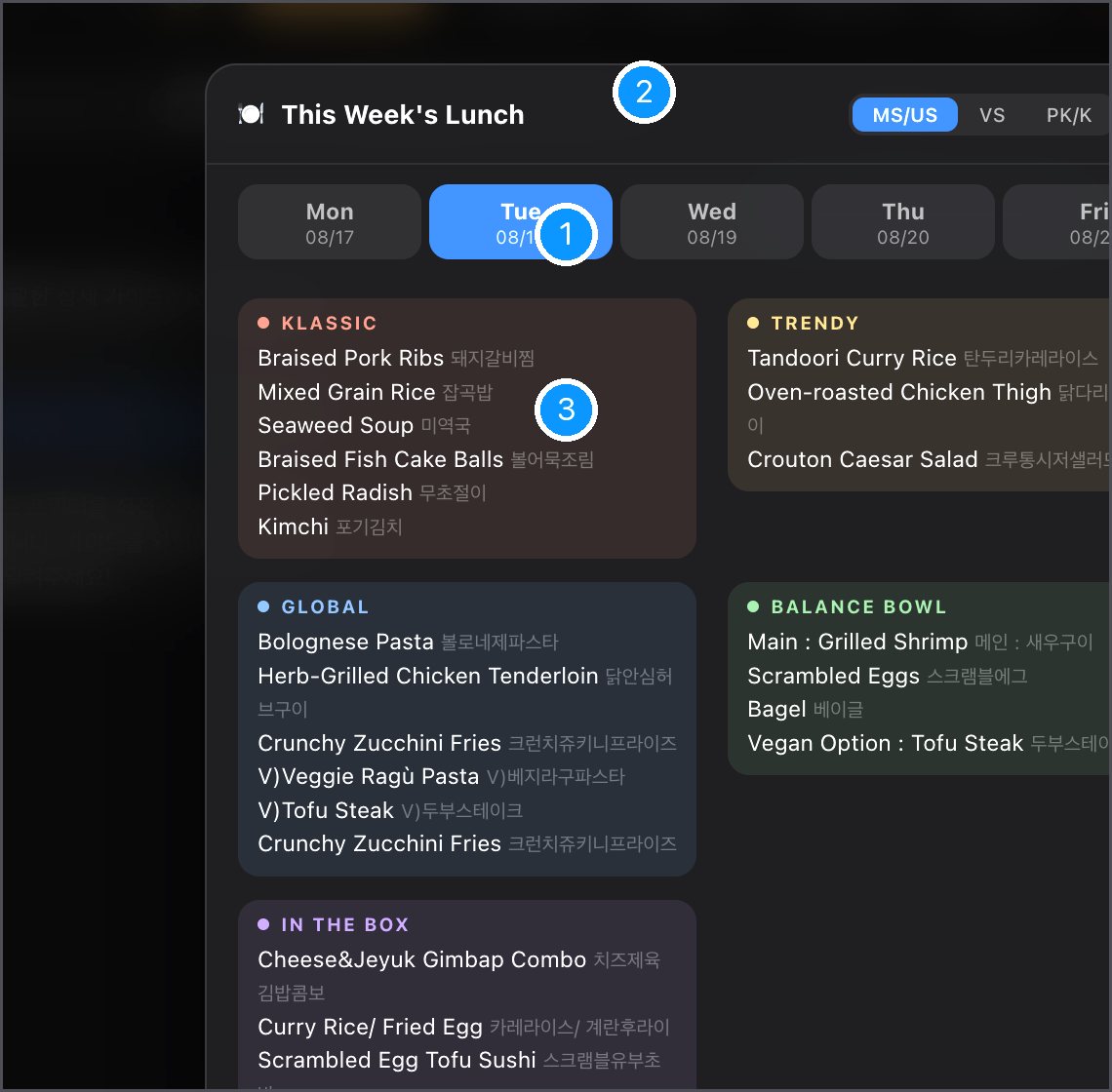
- Day tabsMon–Fri of the current week. A day with no school simply says so.
- DivisionMS/US, VS or PK/K — each shows exactly what that cafeteria serves.
- StationsMS/US: Klassic · Trendy · Global · Balance Bowl · In the Box, each in its own colour. Korean names sit next to the English.
On the Home tab, "Today's pick" shows the day's main dish with a small illustration.
AI Support — ask first, it's fast
A school-specific assistant that knows our systems, printers, Wi-Fi, Veracross, Jamf and more. Type in Korean or English.
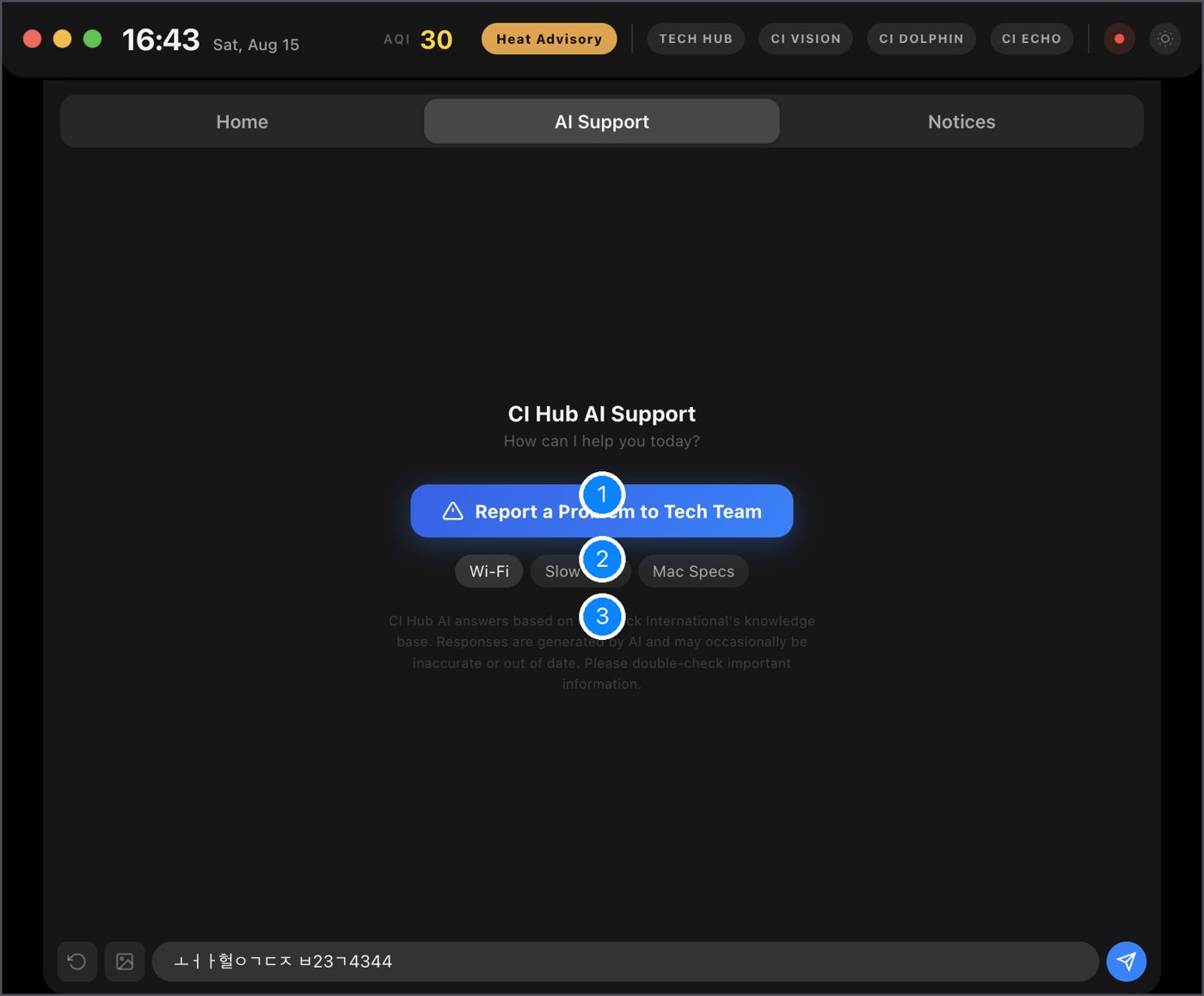
- Report a Problem to Tech TeamOne click opens a ticket to the Tech Office when you already know you need a person.
- Quick questionsWi-Fi · Slow Mac · Mac Specs — tap to ask instantly.
- Good to knowThe AI answers from Chadwick's knowledge base and can be wrong. Double-check anything important.
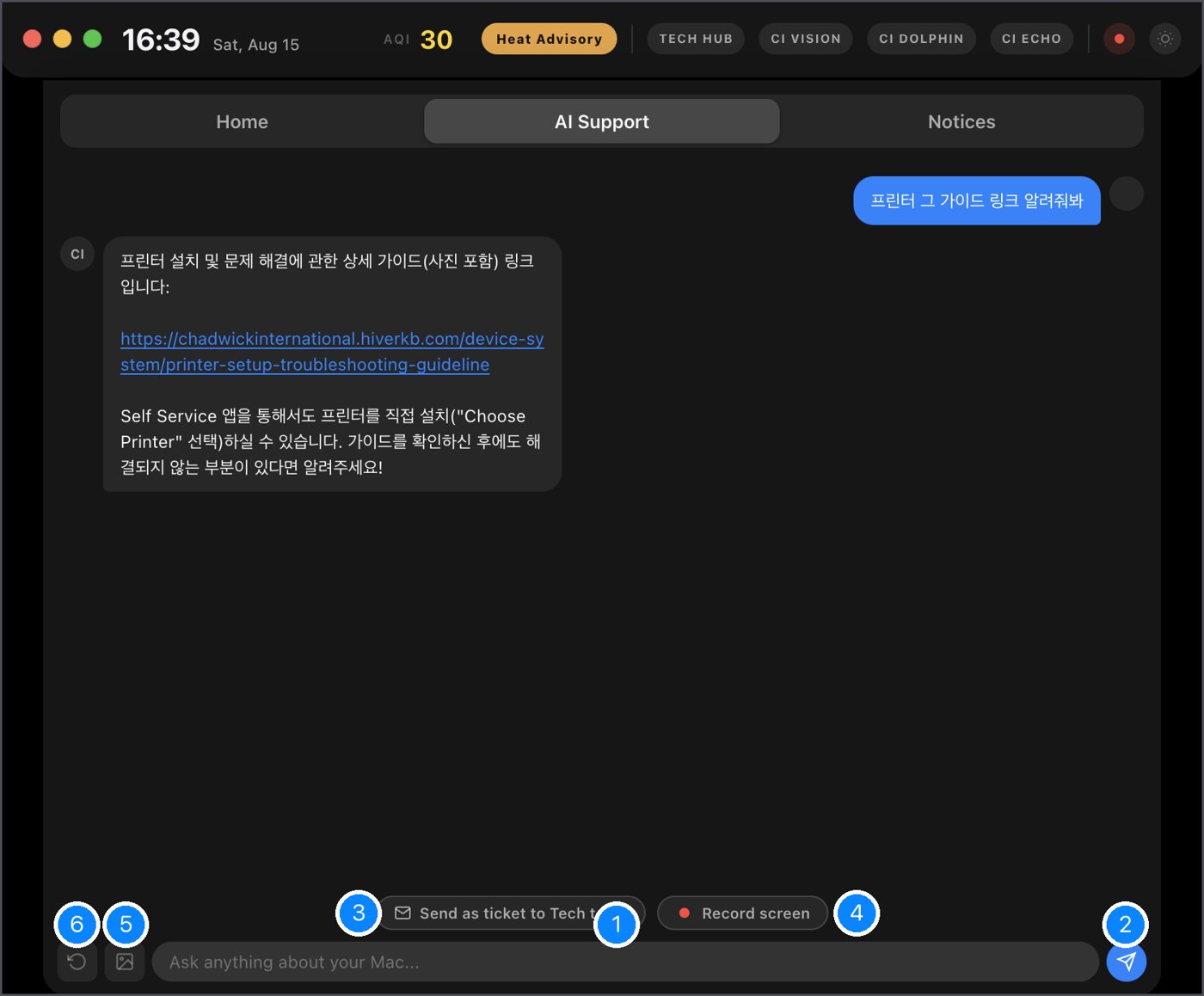
- Ask anything about your MacPrinter setup, projector, passwords, software… plain language is fine.
- SendOr press Return.
- Send as ticket to Tech teamNot solved? The whole conversation goes to us as a ticket — you don't retype anything.
- Record screenCapture a short clip of the problem to attach.
- Upload a photoSnap the error / the cable / the screen — the AI looks at it and finds the problem.
- New chatStart fresh.
Request to Tech Office
Borrow equipment · report something broken · AV / room issues · anything else.
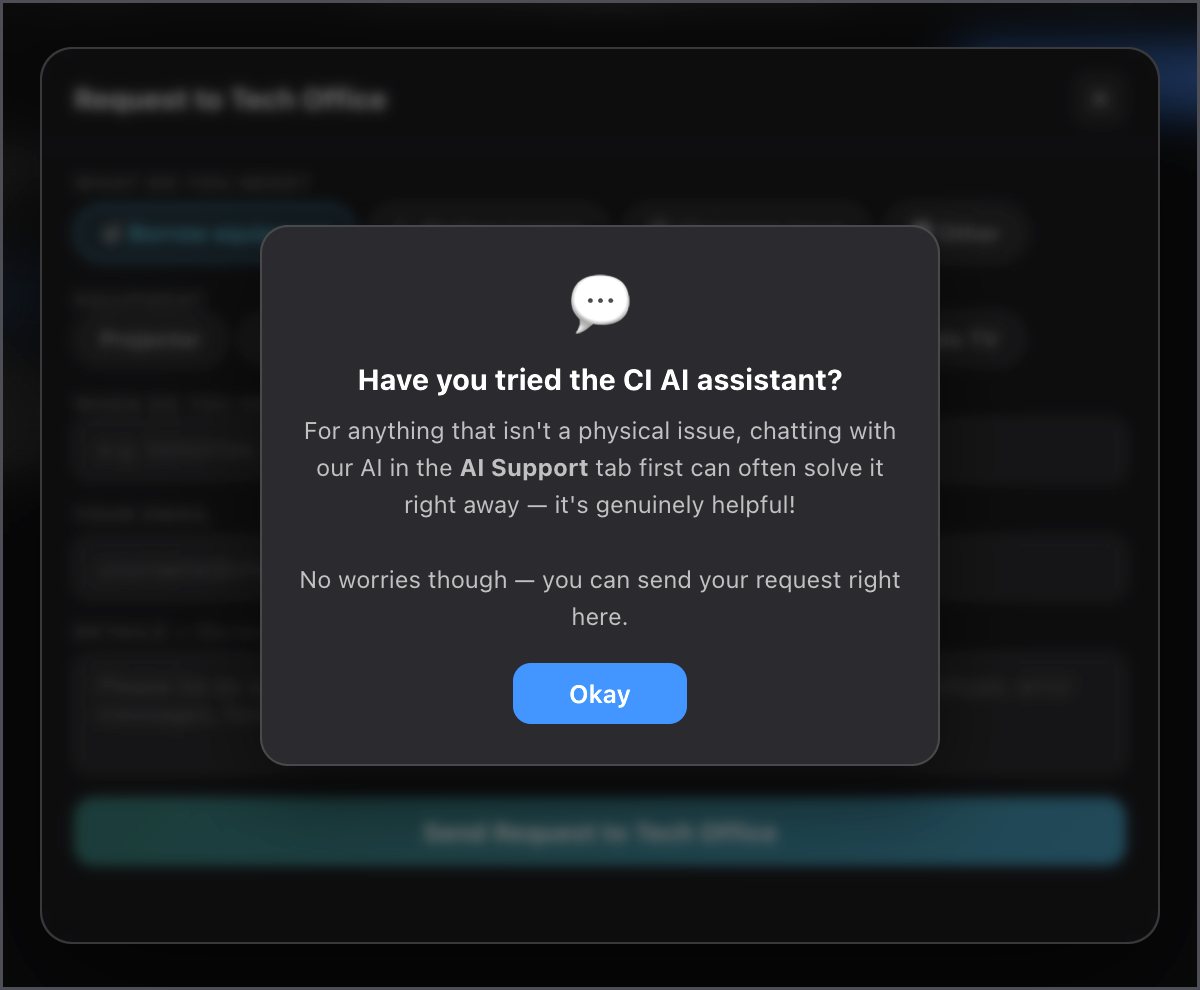
First, a gentle nudge: for anything that isn't physical, the AI usually solves it faster. Tap Okay to continue to the form.
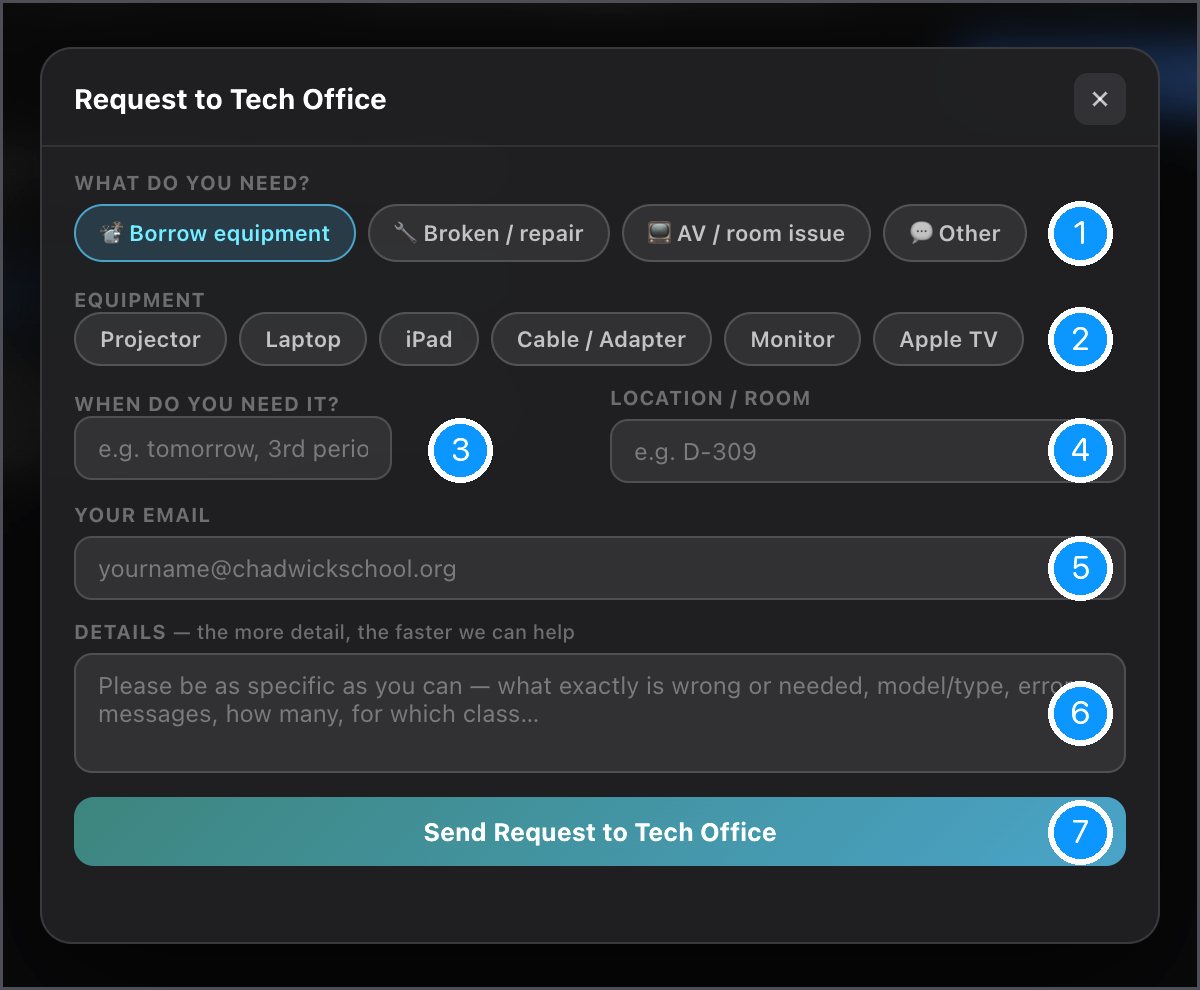
What do you need?
Borrow · Broken/repair · AV/room · Other
Equipment
Projector, laptop, iPad, cable, monitor, Apple TV
When
e.g. tomorrow, 3rd period
Room
e.g. D-309
Your email
So we can reply to you
Details
The more specific, the faster we can help
Send
You get a notification when we reply or when it's done
Track your requests any time under Home → your open request card. You can reply to us or withdraw a request from there.
Air Quality panel
Click the Air Quality row (or the AQI badge at the top). A side panel opens next to the widget.
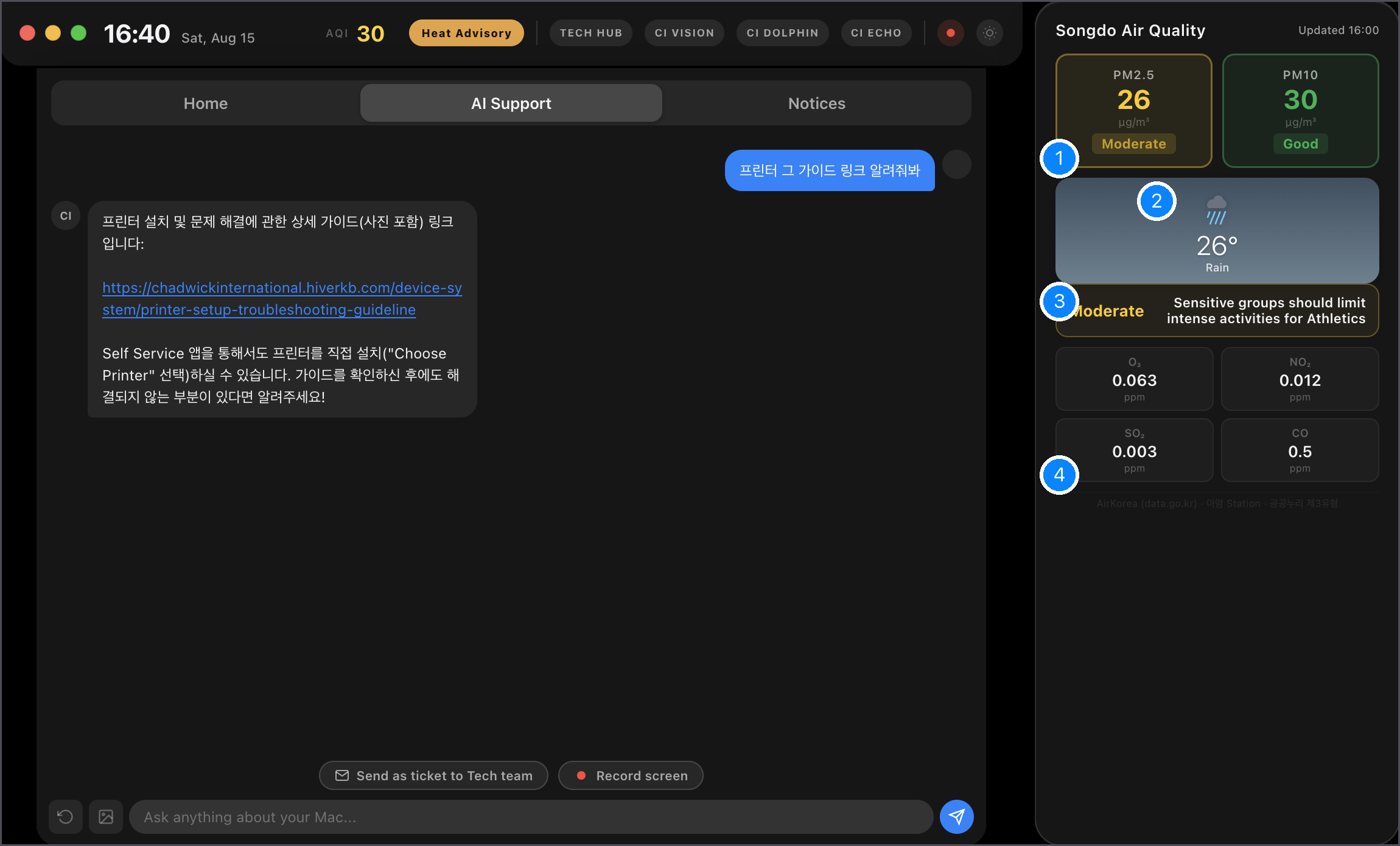
- PM2.5 · PM10Live from the AirKorea station nearest to campus. Colour = level.
- WeatherCurrent conditions and temperature.
- Activity guidanceWhat today's air means for outdoor time and Athletics.
- GasesO₃ · NO₂ · SO₂ · CO for the curious.
Click the row again to close the panel.
Heat-wave alerts
When KMA issues a heat alert for Songdo, an orange/red pill appears at the top and a Heat bar on Home.
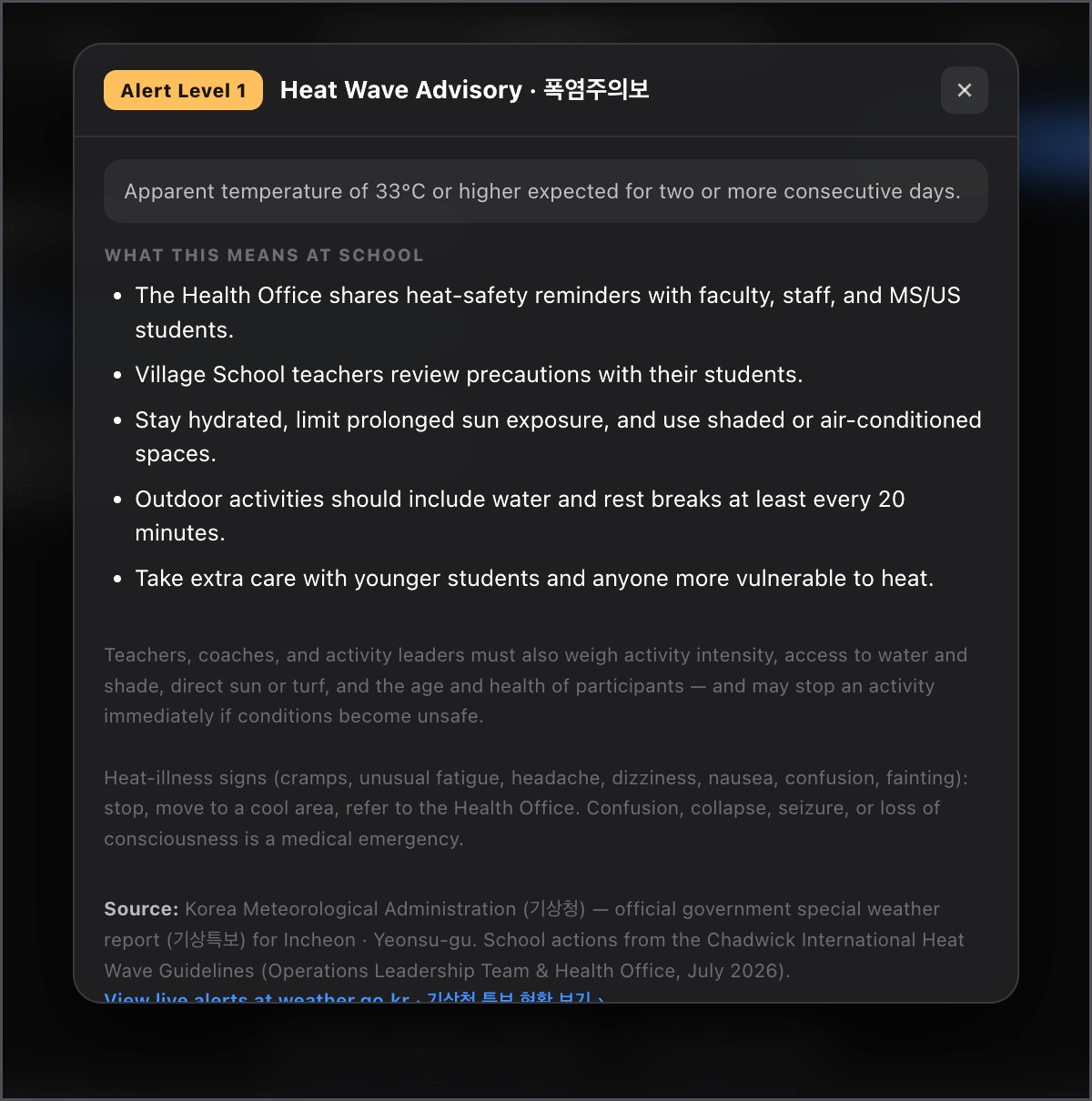
- What you'll seeAdvisory (yellow) · Warning (orange) · Severe (red). Click the pill or the Heat bar to open this card.
- What to doChadwick's own heat guidelines for that level — recess, PE, hydration, who to contact.
- NotificationsYou get at most two a day (morning and early afternoon). Don't want them? The bell switch on the Heat bar mutes them on your Mac; the bar itself stays.
Notices & notifications
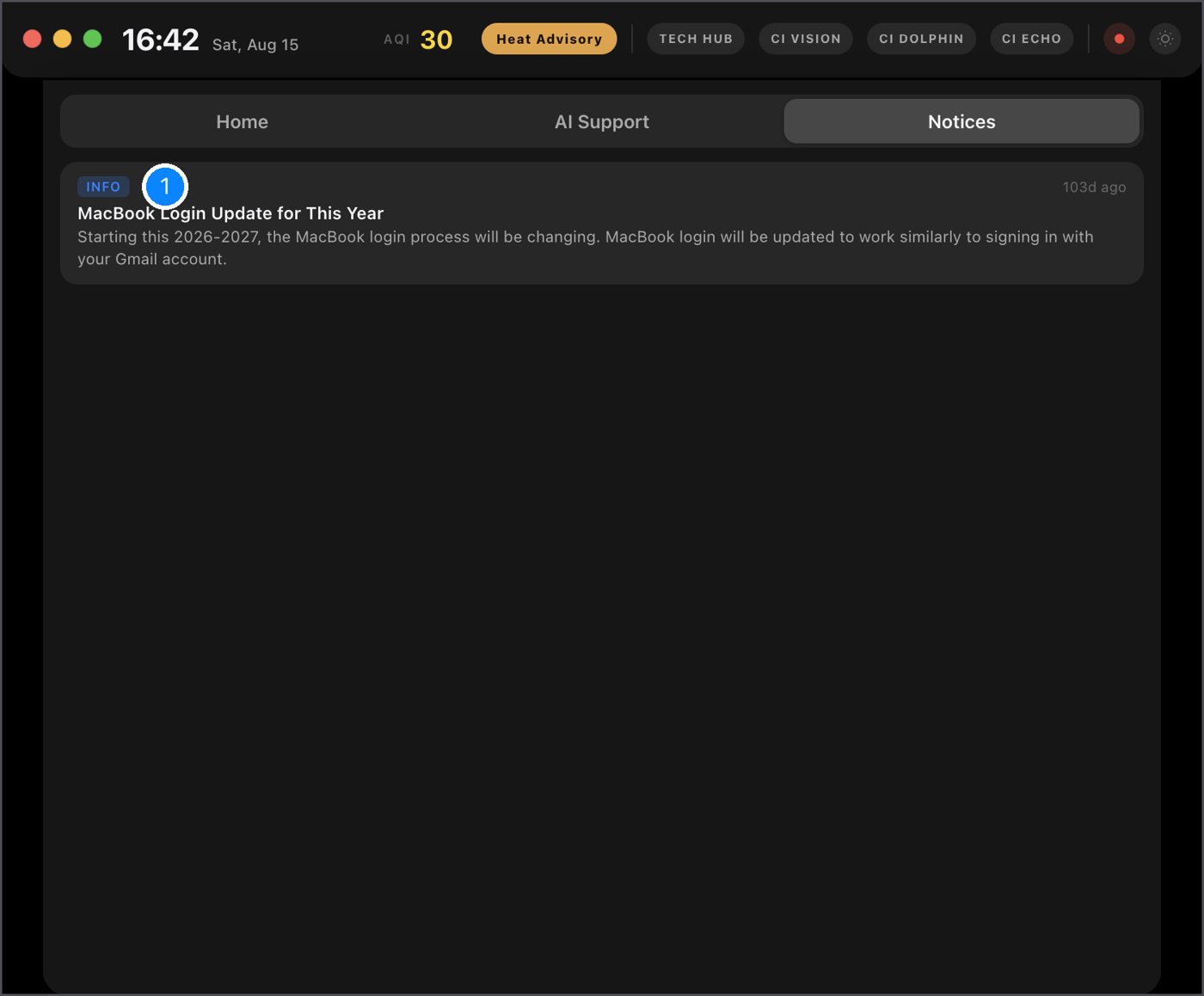
- Notices tabAnnouncements from the Tech Office — login changes, outages, new tools. Newest first.
You'll also get a normal macOS notification when: the Tech Office replies to your request · your request is confirmed or resolved · a heat alert is in force (max 2/day) · we send an urgent broadcast.
Quick answers
The widget disappeared from my menu bar
Wait 30 seconds — it restarts itself. Still gone? Open Launchpad → CI Hub, or ask us.
It shows "--" for air quality
The AirKorea feed is briefly down; it retries every 10 minutes on its own.
Can I turn off the heat notifications?
Yes — the bell switch on the Heat bar. It only affects your Mac.
Does it update itself?
Yes, silently. On a Mac you never install anything; on Windows you install once (see Windows PC) and it updates itself after that.
Is my chat private?
The AI conversation stays on your Mac unless you choose "Send as ticket". Tickets go only to the Tech Office.
Something is wrong with the widget itself
AI Support → "Report a Problem", or email songdo-technology@chadwickschool.org.